Material You: Grey Colors.
How to make Material You Icons and Widgets black and white (no color)?
So, we often get this question:
"I have a black and white wallpaper, but the icons and widgets are blue."
"How can I make the icons and widgets gray, white, or colorless?"
Let's get this straight. The Material Accent palette doesn't have a gray color. Instead, everything is blue (by default). Some devices have a System Accent palette (MONO) for Gray, which doesn't have a color. You'll need to enable it. Here are some examples for some devices:
OneUI
OxygenOS/ColorOS
PixelUI
Samsung OneUI.
Let's start with the most difficult part - Samsung OneUI. Why is it difficult? Because Samsung has a specific way to apply colors to Material and requires more steps to apply the color. 
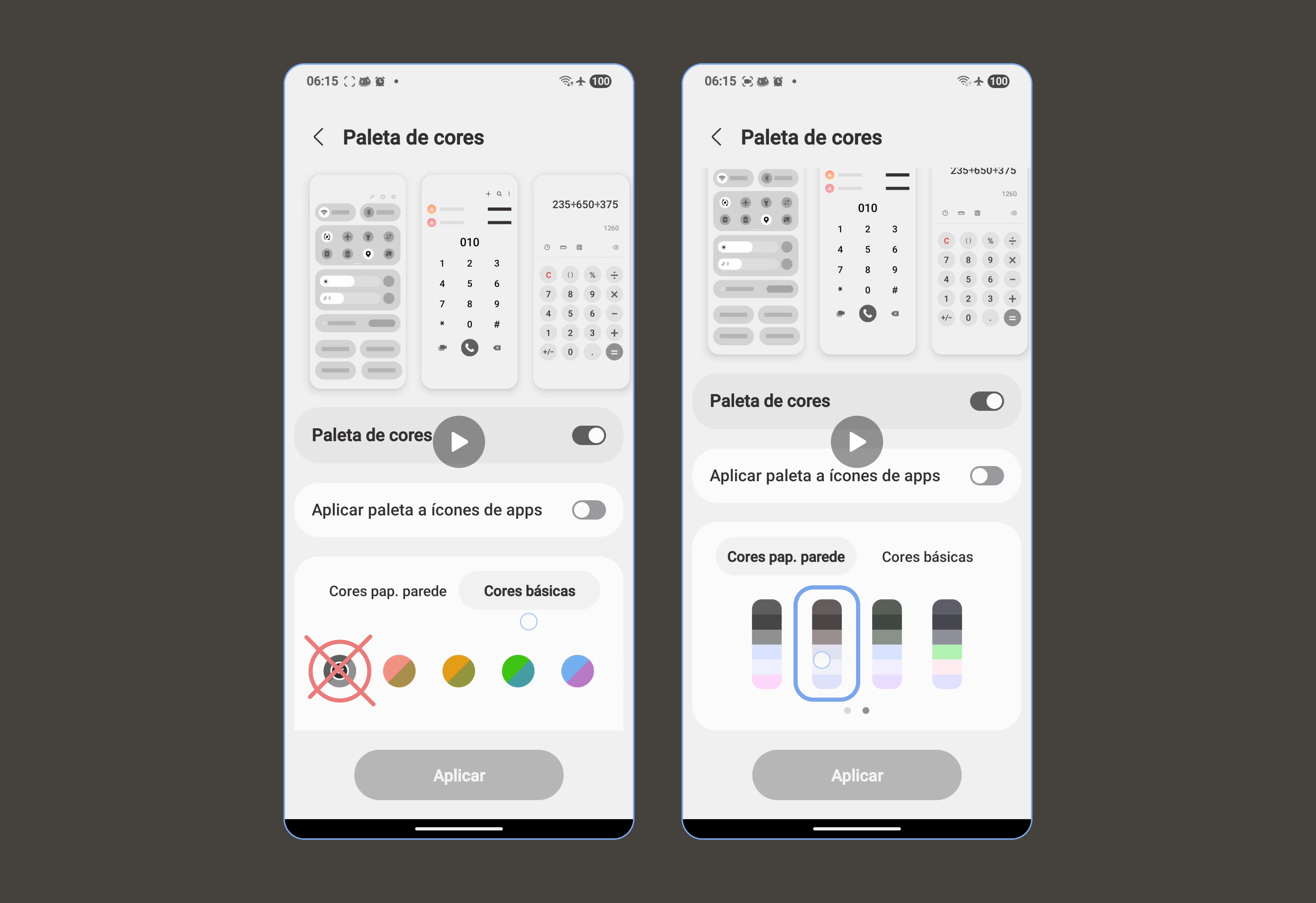
Previously, you could simply set the "Primary Colors" color to gray, but now this does not work for Material You colors for widgets, icons, and apps, only for system ones. So we need to do it a little differently:
- To start, set a Black wallpaper (preferably just a solid color).
- Next, take a look at the wallpaper palette and select the second option on the next page of options (as shown in the screenshot).
- Click apply. Widgets will be applied immediately, and about icons here.
ColorOS / OxygenOS.
On OxygenOs or ColorOs devices everything is simple. 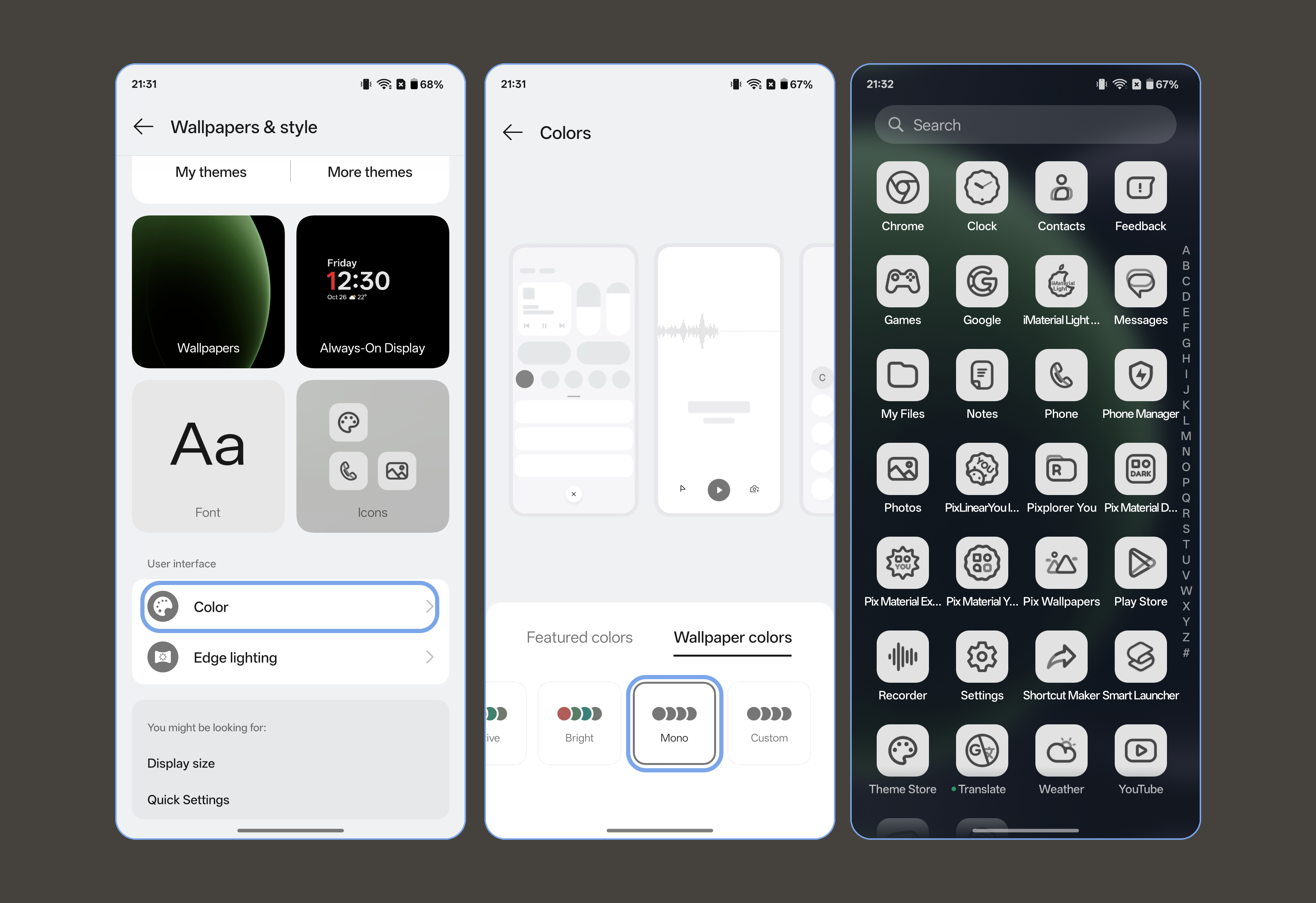
Go to device settings > Wallpaper and Styles > Color > Wallpaper Color > Select the Mono palette. Widgets will immediately apply the color, but read about icons. As you already know, icons on the default launcher don't change colors very well. To change the color, you need to:
- Long tap on the home screen > Icons.
- Select another custom icon pack (Attention!!! - not built-in packs, but a custom one) and apply it > then go to the Home Screen.
- Next, we use the Material You icon pack.
Google Pixel.
This is the perfect system for working with Material You, and it even has a MONO palette. So no need to explain. Just look at the screenshots.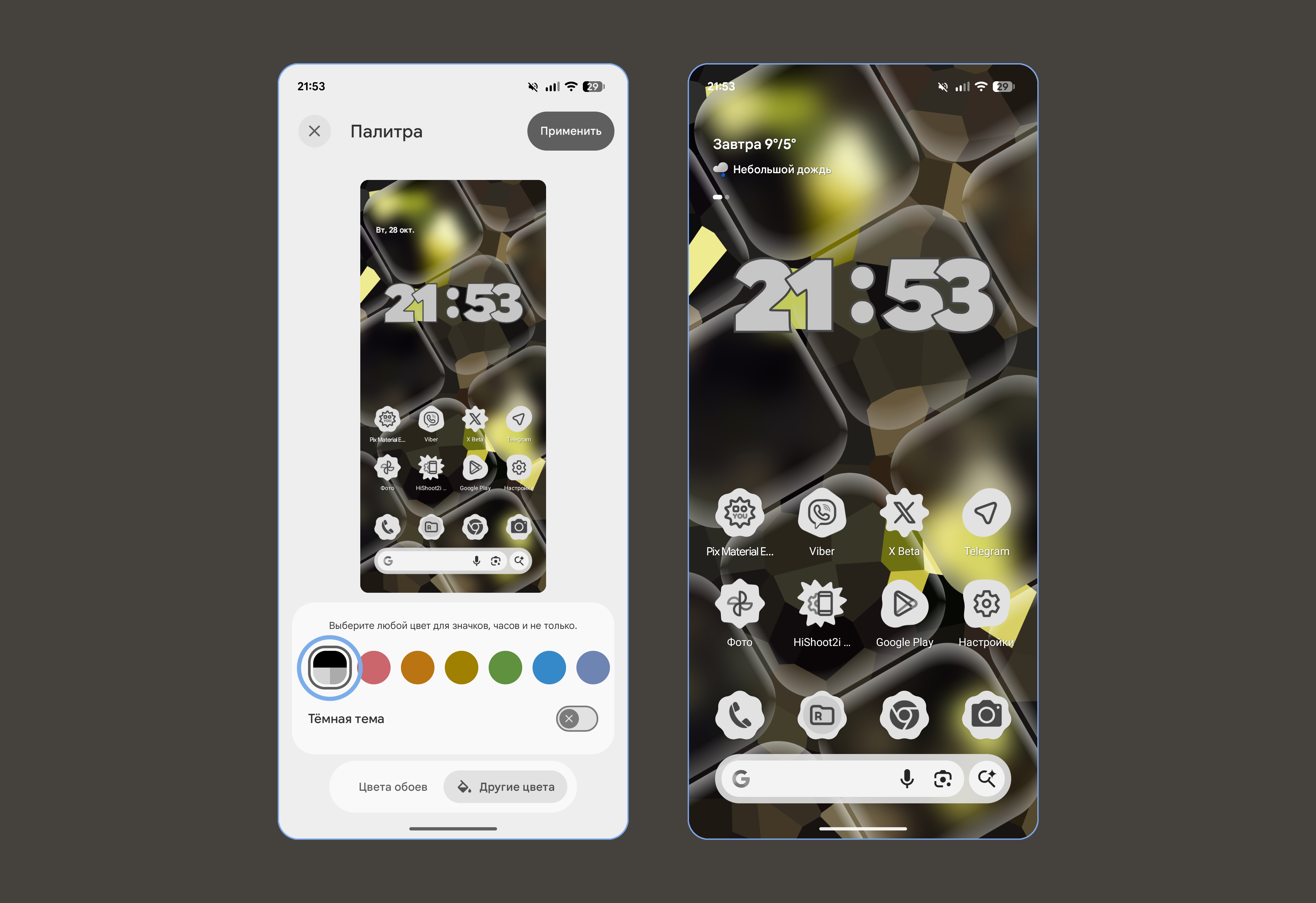
Pixel Icons is our latest development.