Folder Widget for any Android device.
Folder Widget with Icons from Icon Pack for any Android device.
Following the successful development of the Icon Widget, which already offers users an unprecedented level of icon customization, the next crucial phase in our product evolution was the creation of the Folder Widget.
Icon Widgets bear a strong resemblance to standard launcher icons. However, like all other widgets on the Android platform, they do not support being placed inside regular system folders.
This necessity is precisely why the development of the Folder Widget became a required and logical progression of our toolset. It solves a critical pain point by enabling users whose Android launchers do not support the use of third-party icon packs to nonetheless organize and group custom icons. Thus, the Folder Widget is not just a new element, but a vital development tool to ensure flexibility and home screen personalization for all users.
And in the recent update of Pix Material Expressive Icon Pack, Folder Widget is now available. At the moment it is only available in this icon pack, but will be expanded to other icon packs like Icon-Widget.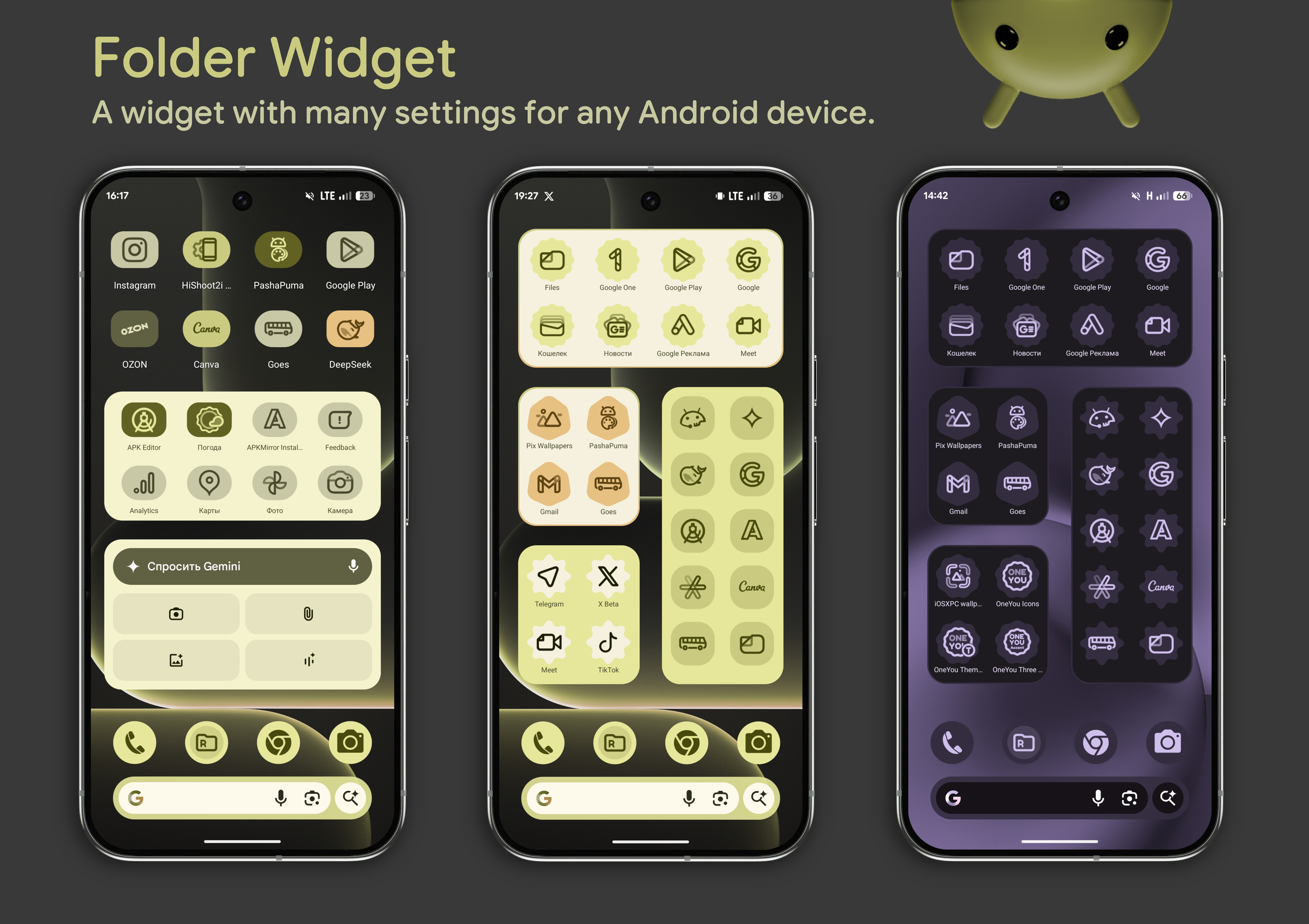
Initially, the folder widget concept was quite compact and strict. We planned to create a 2x2 widget that could accommodate only four selected apps. It would provide convenient and quick access to the most essential programs without cluttering the desktop.
However, after analyzing feedback and assessing its potential, we decided to significantly expand its functionality. Now, this folder widget has been completely transformed:
- Unlimited Apps: You are no longer limited to four slots. Now you can add absolutely every app installed on your device to the widget!
- Scrolling Functionality: To accommodate a large number of icons in the same compact space, vertical scrolling has been added. This allows you to maintain a neat widget size on your desktop while providing access to your entire digital arsenal from a single location.
Thus, the widget has evolved from a simple shortcut into a full-fledged, scrollable app library that helps you organize your workspace as efficiently as possible.
In addition to the expanded capacity, we have introduced a number of important options for fine-tuning the appearance and interaction of the widget:
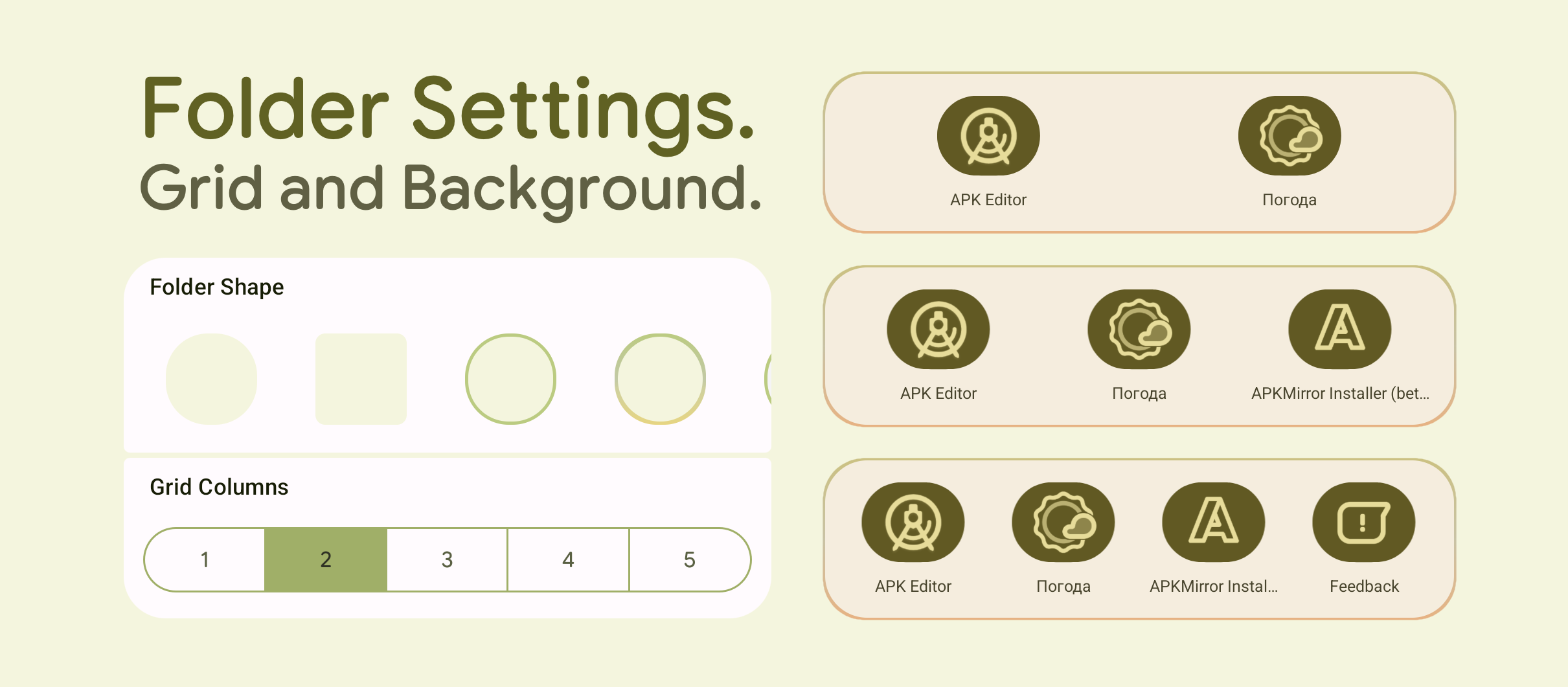
1. Flexible Grid and Size Configuration.
Customizable Grid Size: You can choose the number of icons displayed in a single row — from 1 to 5.
Dynamic View Adjustment: The grid selection (e.g., 3xN, 5xN, etc.) allows you to expand the widget's view area to different sizes on your home screen, perfectly fitting it into your personal layout.
2. Visual Personalization.
Background Selection: You can now choose a background image or color for the entire widget, allowing for seamless integration with your desktop theme.
Interaction Animations: To make the widget more lively and responsive, we have introduced two animation options:
Tap Animation: This triggers when you tap an application icon, making the interaction feel more interactive and intuitive.
Icon Rotation Animation: This option can also be found in the widget settings. It adds a dynamic rotation effect to the icons, giving the widget a unique visual flair.
Next, we will detail the settings available for the icons themselves within this folder.
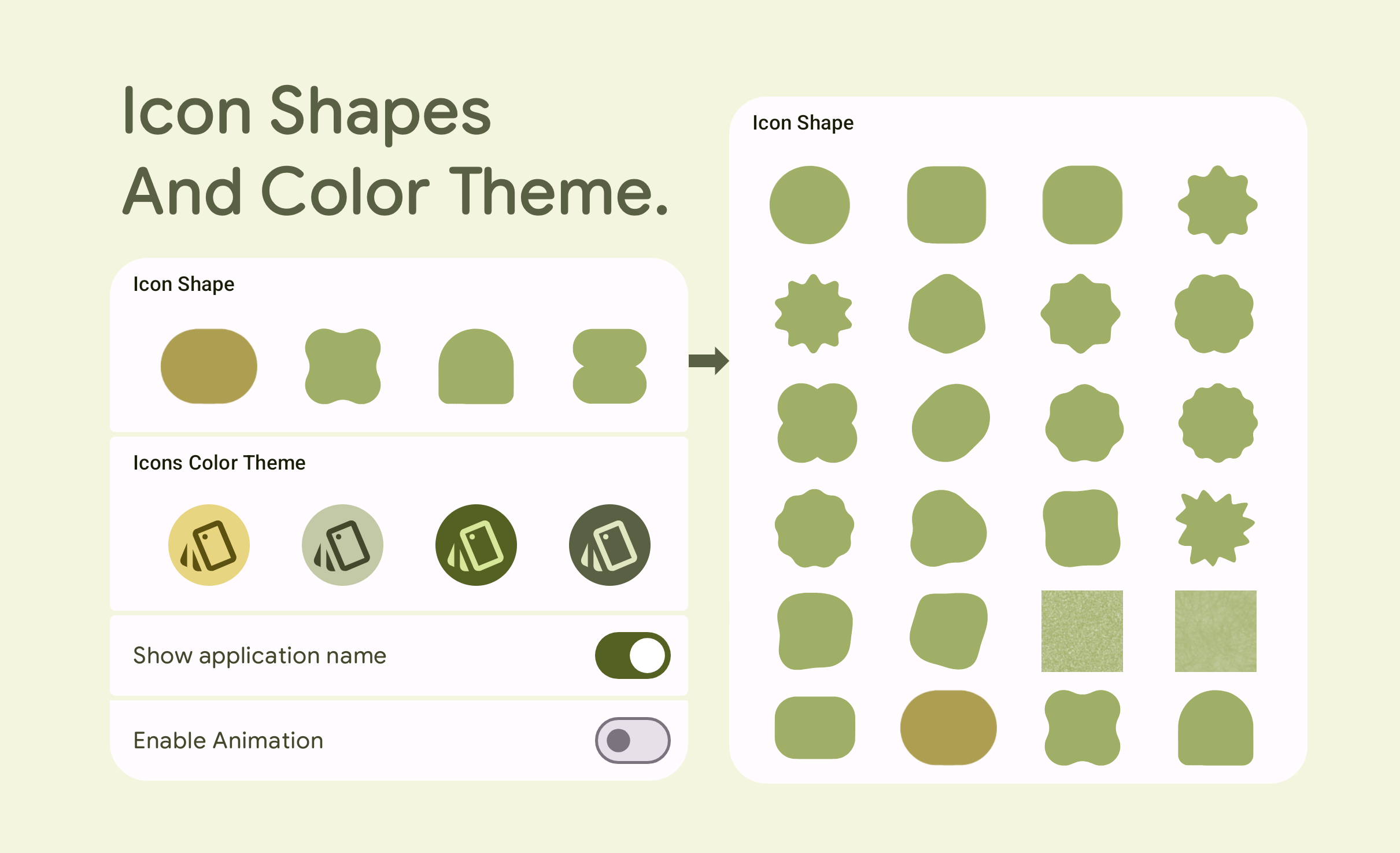
The settings for the icons displayed inside the folder widget largely mirror the functionality available in our Icon-Widget, but with the addition of new, unique personalization options.
Core Icon Customization Options:
Variety of Shapes: A wide variety of icon shapes are offered and can be further expanded. This allows you to give all icons inside the folder a unified or unique appearance.
Icon Animation: You can set up icon animation to add visual interest.
Hiding Labels: You have the option to hide or display application labels to make the widget as minimalistic as possible.
New Feature: Icon Color Schemes
A key addition inherited from the Icon-Widget is the Icon Color Schemes feature. This new tool significantly expands personalization possibilities:
Material You-Based Schemes: Color Schemes are a set of preset colors applied to icons based on the Material You design philosophy.
Themed Variations: You will find that these schemes offer different coloring variations than the standard system-themed icon.
Visual Effect: Using this feature, you can make the folder appear more vibrant and lively or, conversely, leave the icon background blank (transparent), depending on your desired configuration.
This detailed customization allows you to create a folder that perfectly matches your taste and the rest of your home screen setup.
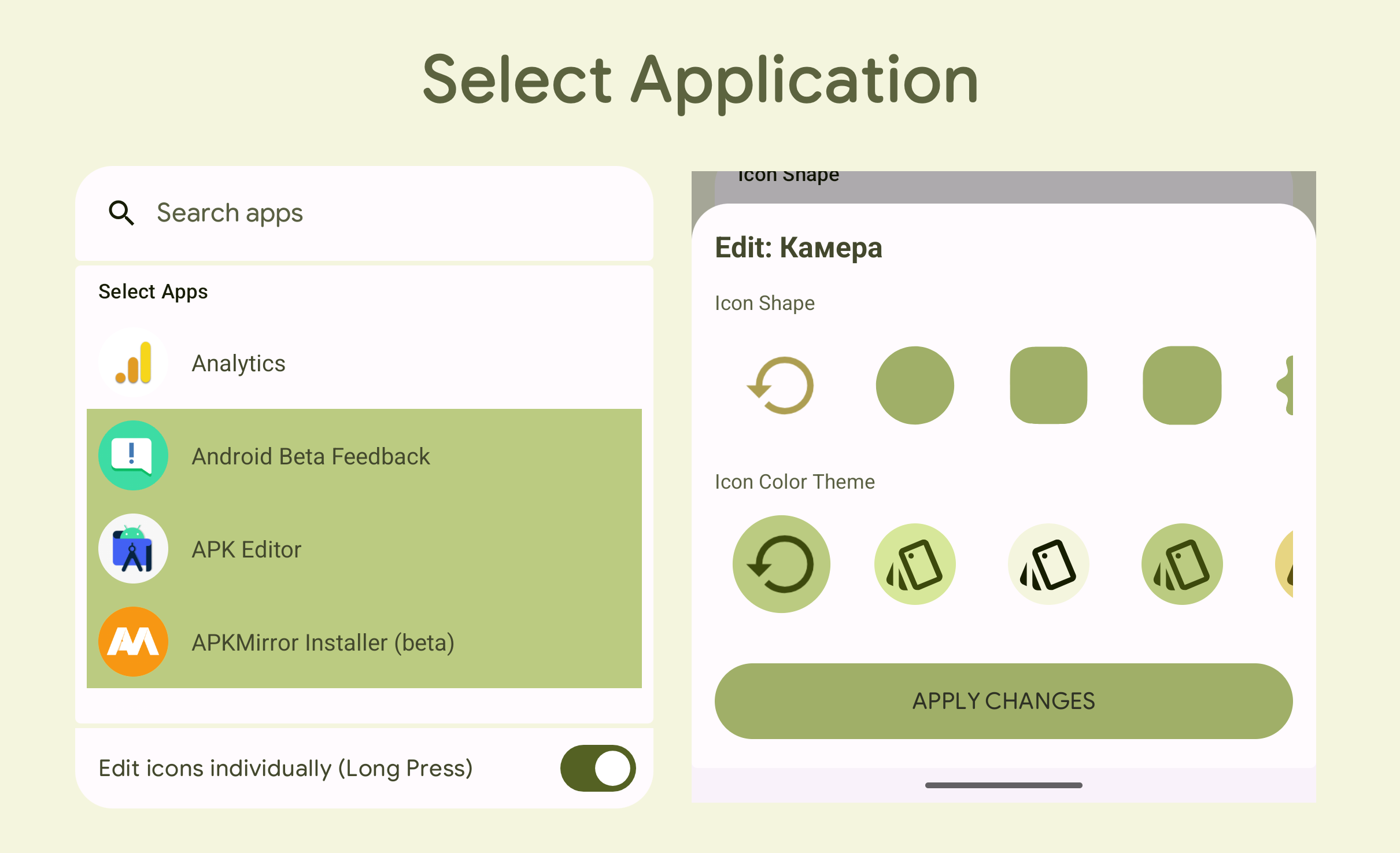
To make your folder truly unique and personalized, we have added the ability to individually edit every icon inside it. This takes customization to an entirely new level:
1. Activating Individual Mode
"Edit Icon Individually" Option: To get started, simply enable the corresponding setting — "Edit Icon Individually".
Accessing Settings: Once activated, a long-press on any selected app icon within the folder will open a dedicated settings dialog box.
2. Detailed Per-Icon Personalization
In this dialog box, you can set unique parameters for that specific application, regardless of the folder's general settings:
Shape Selection: You can choose the Shape of the individual icon.
Color Theme: Select a unique Color Theme based on Material You.
As a result, you will be able to create a folder featuring diverse icons, where each application has its own distinct shape and color scheme, transforming the folder from a mere tool into a genuine design element.
Folder Widget Availability
Currently, the Folder Widget functionality is integrated and available within the following icon pack:
Planned Future Features (Roadmap)
We are constantly working to improve and expand the Folder Widget's functionality to provide you with even more customization options. Our immediate plans include the following key updates:
| Feature | Description |
| Notifications Dots | Adding standard Android notification dots to the app icons within the folder. |
| Icon Position Edit | The ability to manually change the order of the icons within the folder's scrollable list. |
| Visual Edition | Additional settings for the widget's appearance, animations, and styles. |
| Adding to Other Icon Packs | Expanding the availability of the Folder Widget to our other popular icon packs. |
And if you have any problems, contact the Support Group in Telegram.