Mini-Folder Add-on/Widget.
Mini-Folder Add-on/Widget: Ultimate Personalization for Your Launcher
In the world of Android customization, efficiency and aesthetics often go hand-in-hand. The Mini-Folder Add-on/Widget is a powerful tool designed to help users organize their home screens while maintaining a clean, modern look. Whether you are looking for better app grouping or high-level security, this add-on offers a seamless experience across any launcher.
They are found in two Icon Packs. And these aren't just icon packs - there are over 26,000 icons, covering many applications and many widgets. Here are these two beauties:
1. What is Mini-Folder?
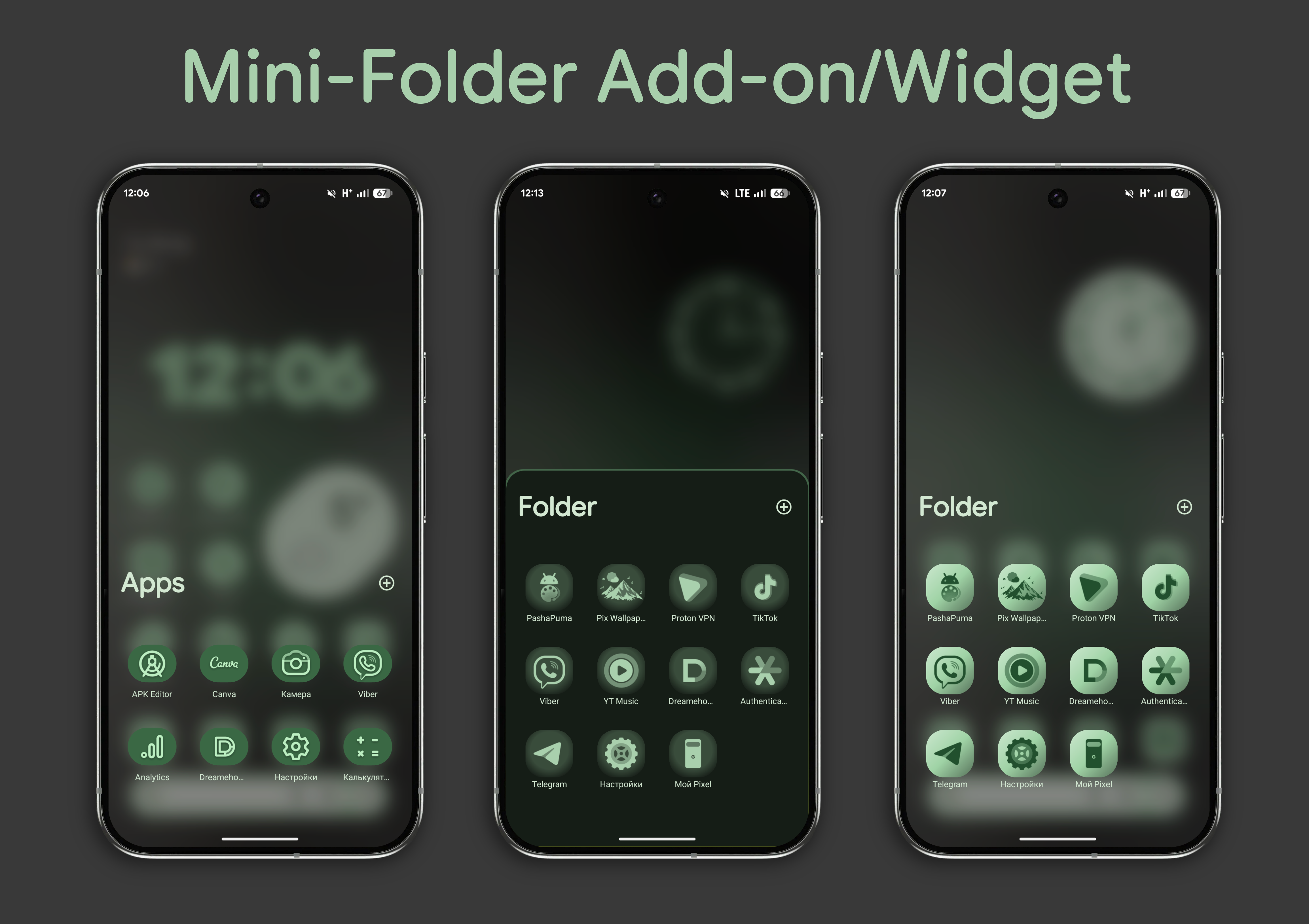
The Mini-Folder is more than just a standard directory for your apps; it is a highly customizable overlay that integrates perfectly with your current wallpaper and theme.
Key Features:
Universal Compatibility: Works smoothly on any third-party or stock launcher.
Quick Add: Easily populate your folders using the "+" button inside the folder or through the dedicated settings menu.
Immersive Visuals: When opened, the folder features a beautiful blurred background (frosted glass effect) that keeps your home screen visible while focusing on your apps.
Fingerprint Protection: For those who value privacy, you can lock specific folders with fingerprint authentication, ensuring only you have access to sensitive applications.
Extensive Personalization: From icon shapes to animation styles, every detail is under your control.
2. Installation: Two Ways to Get Started
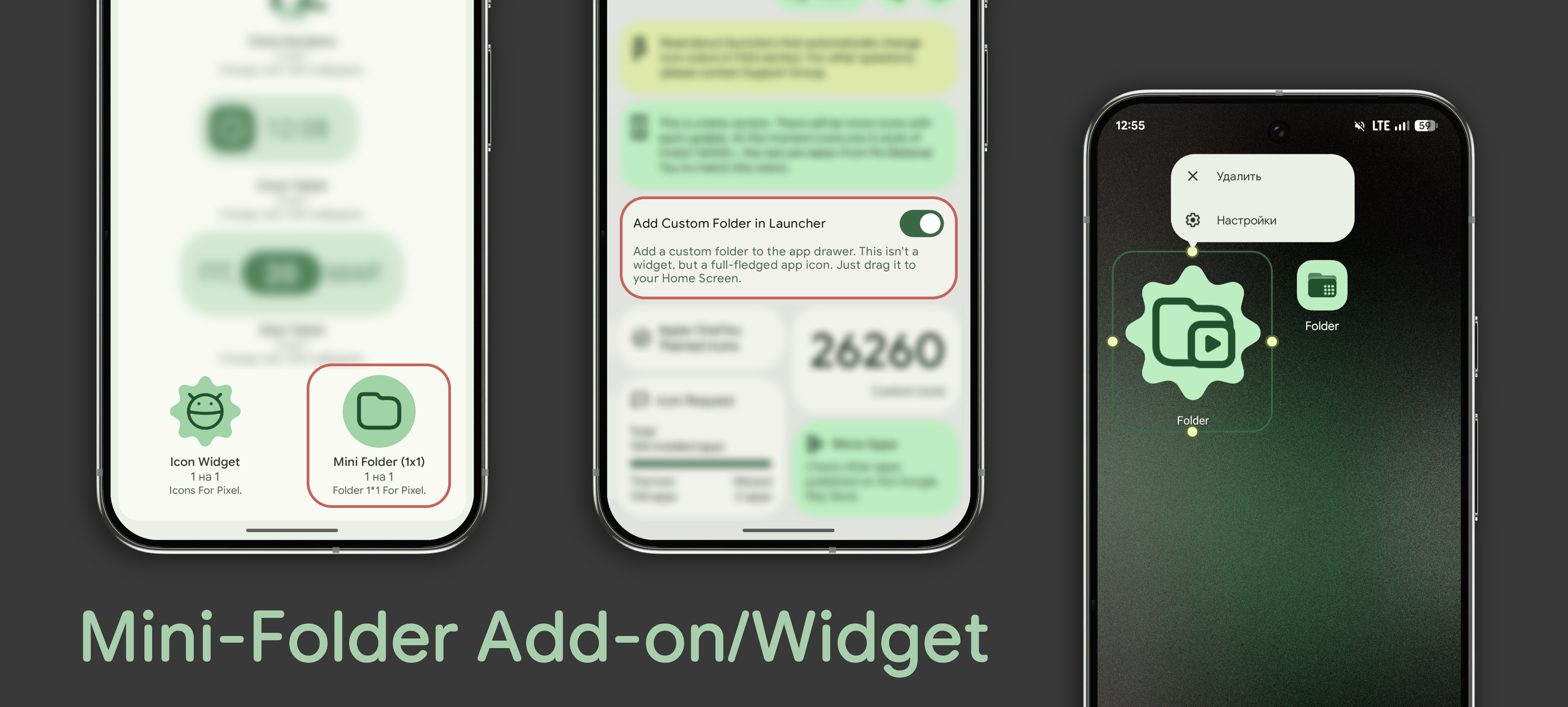
Setting up the Mini-Folder on your home screen is straightforward, offering two distinct methods depending on your preference:
First, download one of the icon packs of your choice, as these are the icons that will appear in your folder:
Method 1: The 1x1 Widget
For users who prefer standard widget placement, you can select the Mini Folder (1x1) from your launcher's widget menu. It behaves like a standard widget but provides the full functionality of the Mini-Folder system once tapped. In the widget you can change the folder icon and create multiple folders.
Method 2: The Add-on (Launcher Icon)
The second method allows you to add a Custom Folder in Launcher. This creates a full-fledged app icon in your app drawer or on your home screen. Unlike a widget, this acts like a native application icon, which can be dragged and dropped easily and often feels more integrated into the system's grid.
3. Deep Dive into Personalization Settings
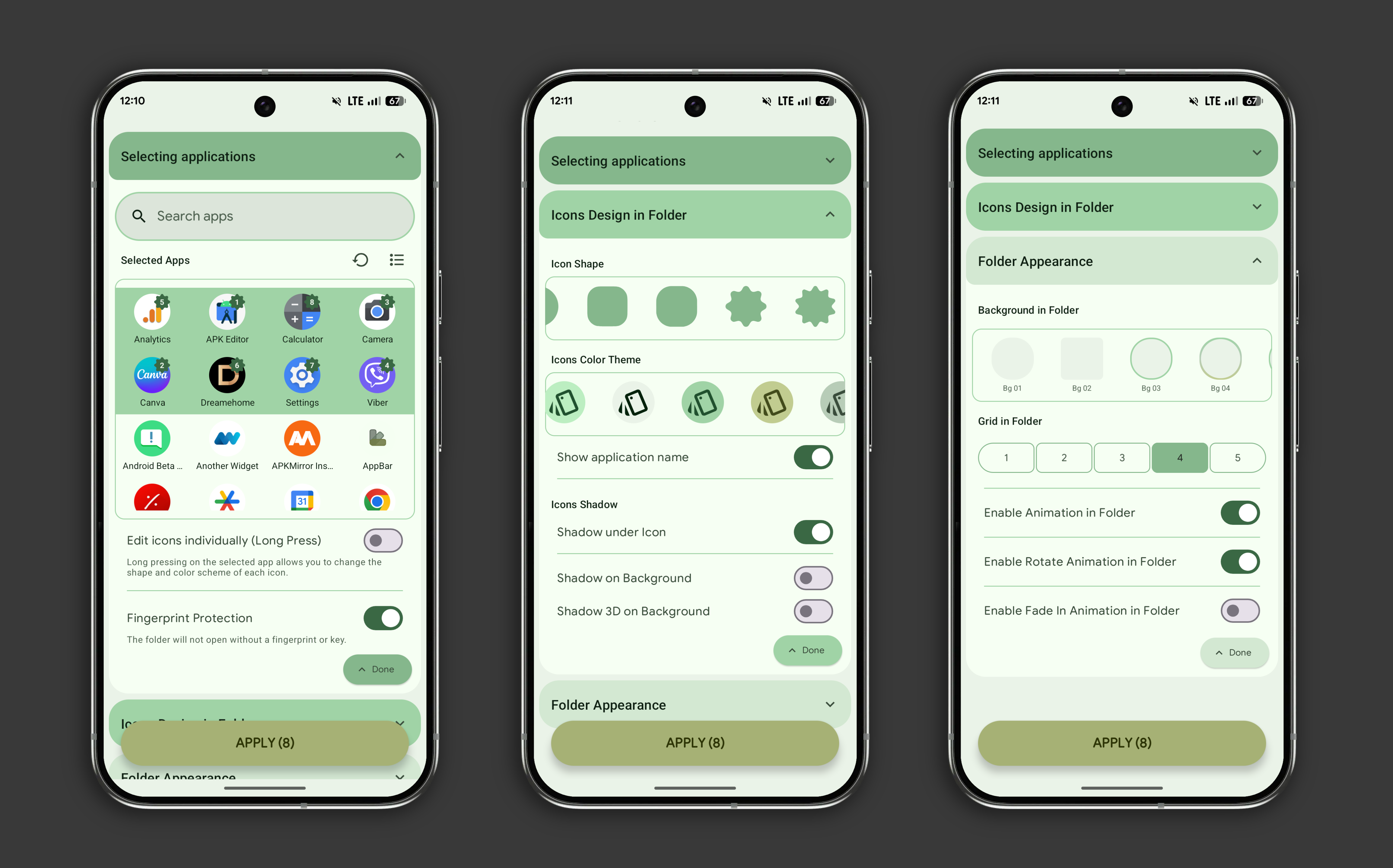
The true strength of Mini-Folder lies in its "Icons Design" and "Folder Appearance" menus. Here is what you can customize:
Selecting Applications
The app picker allows you to quickly search and toggle which applications appear in your folder. You can also toggle "Edit icons individually" (Long Press) to change the shape and color scheme of specific apps within the folder.
Icon Design & Themes
Icon Shape: Choose from various shapes including rounded squares, squircles, and Material 3 Expressive shapes.
Color Themes: Apply monochromatic or Material You-inspired color schemes to your icons to match your wallpaper perfectly.
Labels & Shadows: Toggle application names on/off and customize shadows (Shadow under icon, Shadow on Background, or a 3D effect).
Folder Appearance & Grid
Grid Layout: Adjust the density of your folder by choosing the number of columns (from 1 to 5).
Background Style: Select the opacity and style of the folder container (from transparent to solid shapes).
Animations: Enable smooth transitions including:
Standard Folder Animation
Rotate Animation
Fade-in Animation
Conclusion
The Mini-Folder Add-on/Widget bridges the gap between functionality and style. By offering fingerprint security and deep visual customization, it allows you to build a home screen that is not only organized but uniquely yours.
Try it today and transform your Android experience!